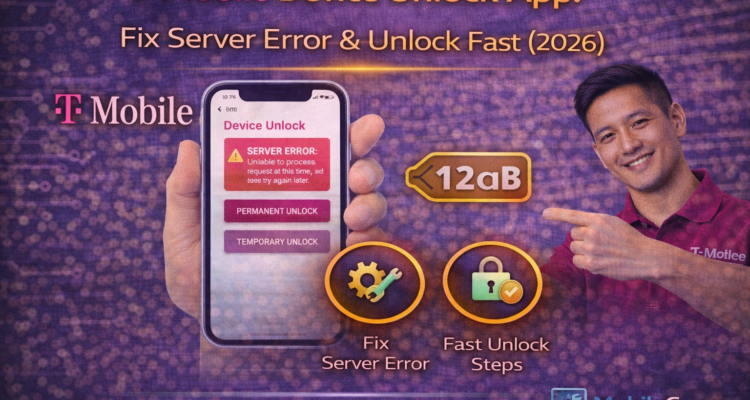
Planning to use your T-Mobile phone with another carrier? The t-mobile device unlock app is the primary tool for Android users to free their devices. However, in 2026, many users are still facing "Server Not Available" or "Communication Error" messages. Here is how to fix the app and unlock your phone permanently.
💡 Important: Newer iPhones and Pixels do not use this app; they are unlocked through the device settings menu. This guide is specifically for Samsung, Motorola, and Revvl users.
How to Use the Device Unlock App
Before you start, ensure your phone is connected to T-Mobile's 5G/6G network and not just Wi-Fi.
- Find the Device Unlock app in your app drawer (or under Settings > Connections > More Connection Settings).
- Open the app and tap Continue.
- Select Permanent Unlock.
- Wait for the "Unlock Approved" message and restart your phone.
Fixing Common 'Server Error' Issues
If the t-mobile device unlock app is not working, try these 2026 troubleshooting steps:
| Error Message | The Solution |
|---|---|
| Server Not Available | Clear App Cache & Data in Settings. |
| Communication Failure | Turn off Wi-Fi; use T-Mobile Data only. |
| Device Not Eligible | Check your 40-day active status. |
🔗 Carrier Switching Tip: Once your device is unlocked, you may need a Transfer PIN to move your number. Also, check if your insurance covers unlocked phones in our Protection 360 Guide.
Frequently Asked Questions
1. Why is the unlock button greyed out?
This happens if the t-mobile device unlock app cannot verify your account. Ensure your device is fully paid off (EIP completed).
2. Can I unlock my phone for international travel?
Yes, you can select the "Temporary Unlock" option for up to 30 days. For a permanent solution, you must meet the 40-day requirement.
3. Does unlocking void my warranty?
No. Unlocking your device via the official app is safe and does not affect your Protection 360 coverage or manufacturer warranty.
4. What if the app is missing?
On newer Android versions, go to Settings > Connections > More Connection Settings > Network Unlock. The app functionality is now built-in.