
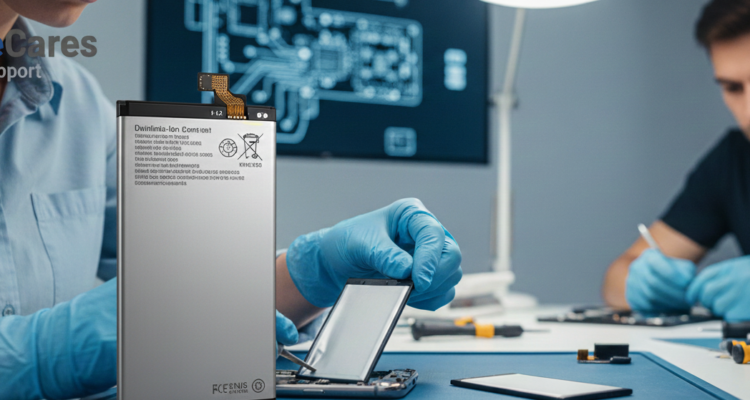
Smartphone Battery Repair Guide: How to Fix Battery Drain Issues
Is your phone dying before the day even ends? Smartphone battery problems are among the most common complaints from users worldwide. Whether your phone is overheating, draining too fast, or stuck at a certain percentage, a professional smartphone battery repair strategy can save you from buying a new device.
In this comprehensive guide, we will explore why mobile batteries fail, how to recalibrate your software, and when it’s finally time to opt for a physical battery replacement. Let’s get your device’s power back on track.
Common Signs Your Battery Needs Repair
Before jumping into repairs, you need to identify the symptoms. Most lithium-ion batteries start degrading after 500 charge cycles (about 18-24 months). Watch out for these red flags:
- Rapid Percentage Drop: Your phone goes from 100% to 80% in just a few minutes.
- Sudden Shutdowns: The device turns off even when it shows 20% or 30% remaining.
- Swollen Back Panel: If your screen or back cover is lifting, the battery is physically bulging. (Warning: This is dangerous!)
- Overheating: The phone feels hot even when you aren’t using heavy apps.
Step 1: Software Calibration (The DIY Fix)
Sometimes the issue isn’t the hardware, but the software “forgetting” the battery’s true capacity. You can perform a calibration before seeking professional smartphone battery repair.
How to Calibrate Your Battery:
- Drain your phone completely until it turns off on its own.
- Charge it to 100% while it is still powered off.
- Once full, turn the phone on. If it shows less than 100%, plug the charger back in until it reaches the max.
- Unplug it and use it normally. Your battery’s logic system should now be reset.
Step 2: Identifying Battery-Draining Apps
Before blaming the hardware, check your settings. Both Android and iOS have built-in tools to show you exactly which apps are eating your power.
Navigate to Settings > Battery > Battery Usage. If you see an app you rarely use taking up 20% of your power, delete it or restrict its background activity. This simple step often fixes many “fake” battery repair issues.
Phase 3: Dealing with Related Hardware Issues
Battery problems aren’t always isolated. Sometimes, water damage or screen issues can cause the battery to work harder than usual.
Water Damage & Battery Life
If your phone recently fell in water, the internal short circuits might be draining the battery. If you are facing this, check our Smartphone Water Damage Repair Guide for immediate rescue steps.
Ghost Touch & Power Consumption
Surprisingly, a malfunctioning screen can also impact battery life. When a screen “phantom touches” itself, it keeps the processor active, preventing the phone from entering sleep mode. Learn how to fix iPhone Ghost Touch to ensure your screen isn’t killing your battery.
Phase 4: Physical Battery Replacement
If your “Battery Health” is below 80% (on iPhones) or your Android device is over 2 years old, software fixes won’t help. You need a physical replacement.
Summary: Professional Repair Checklist
- Check Battery Health in settings.
- Update your OS to the latest version.
- Perform a full calibration cycle.
- Consult a pro if the battery is bulging.
At Mobile Cares, we specialize in high-quality smartphone repairs. If your battery is failing, don’t wait for it to damage your screen get it checked today!